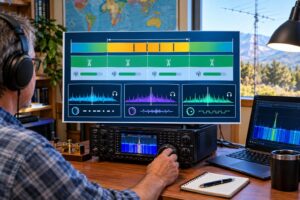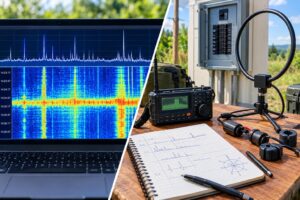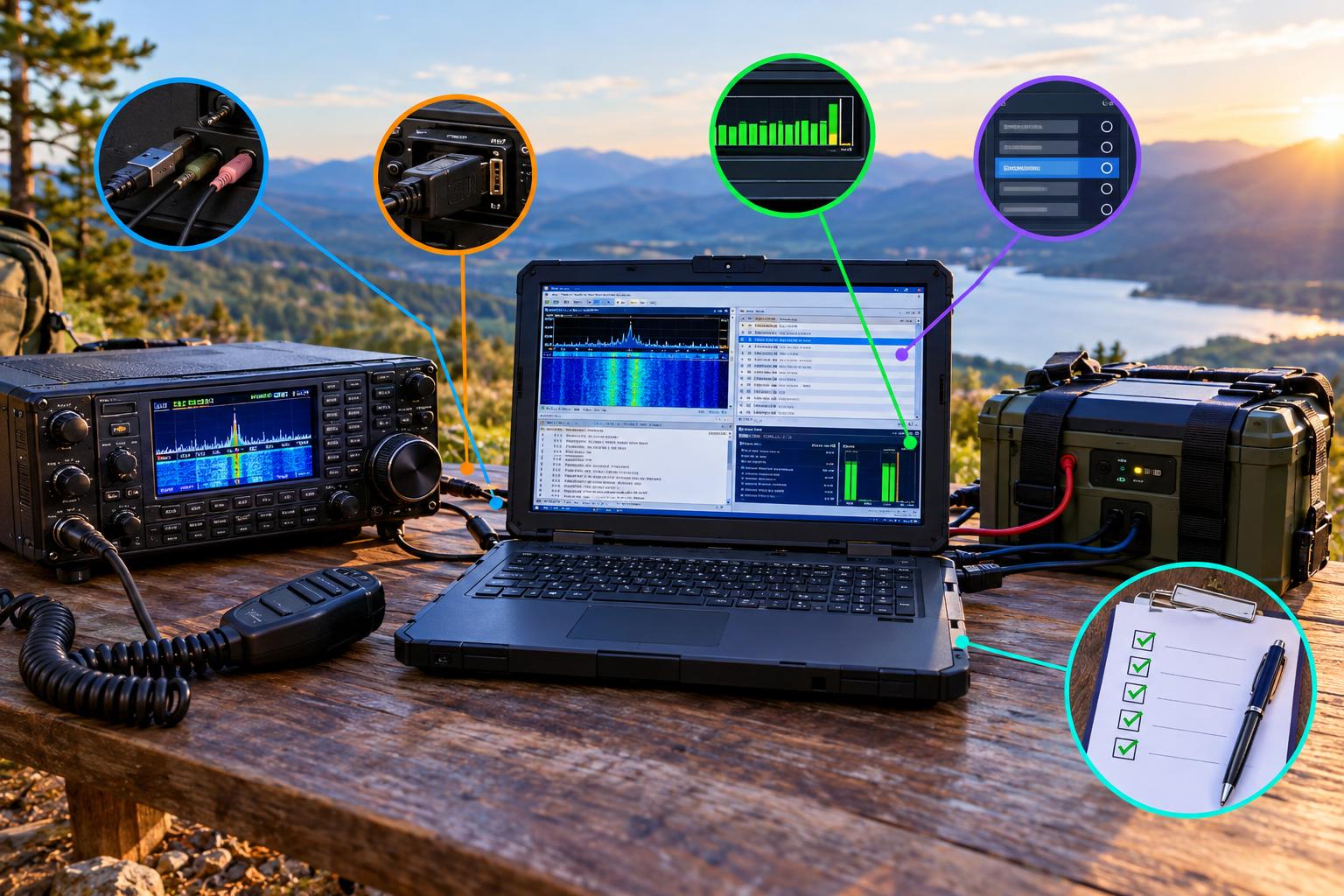
Why a Winlink VARA HF Readiness Drill Matters
Winlink is most useful when it has already been proven from your own station, with your own antenna, computer, radio, interface, and local noise conditions. A downloaded program and a good intention are not the same as a working off-grid email path. The goal of this Winlink VARA HF setup drill is simple: confirm that you can send a short test message through a usable HF RMS gateway before weather, power, internet, or infrastructure problems make troubleshooting harder.
ARRL’s Simulated Emergency Test program emphasizes practicing personal emergency-operating skills, not just checking into a net. Winlink fits that mindset well because it combines station configuration, message discipline, propagation judgment, and basic computer-radio troubleshooting. This article is not a generic Winlink overview. It is a practical readiness check for licensed amateur operators who want to verify that VARA HF, Winlink Express, CAT/PTT, audio levels, and gateway selection are ready before the next outage.
Before You Start: Legal, Safety, and Station Assumptions
This drill assumes you are a licensed amateur radio operator using amateur-radio Winlink channels within your privileges. In the United States, follow current FCC Part 97 rules, your license class privileges, RF exposure requirements, and accepted band plans. Operators outside the United States should consult their own regulator. Technical capability does not create operating permission.
Also confirm basic station safety. Your HF antenna system should be mechanically secure, clear of power lines, and suitable for the band you plan to use. Keep RF exposure compliance in mind, especially with indoor antennas, end-fed wires near occupied areas, or higher-duty-cycle digital operation. Use reasonable transmit power; VARA HF does not need excessive power if the path and audio are right. More power will not fix bad audio, wrong frequency, no PTT, or a poor antenna match.
Step 1: Install Current Software from Official Sources
Start with clean, current downloads. Winlink Express and VARA HF are separate pieces of software. Winlink Express is the client used to compose, manage, and send messages. VARA HF is the modem software that turns data into audio tones your SSB radio can transmit and receive.
- Download Winlink Express from the official Winlink page, not from an old archive or third-party bundle.
- Download VARA HF from the official VARA Products download directory used by Winlink.
- Install your radio’s USB driver if required for CAT control, audio, or both.
- Reboot after driver installation if the driver or Windows requests it. Many serial-port problems are really incomplete driver installs.
- Write down your COM port numbers for radio control and any interface PTT line before opening Winlink Express.
If you have an older emergency laptop, power it up while you still have internet access. Let Windows recognize the audio device and serial ports, then confirm that Winlink Express and VARA HF launch normally. Do not wait until field day, a storm watch, or a public-service event to discover that your software will not open.
Step 2: Map the Signal Path Before Changing Settings
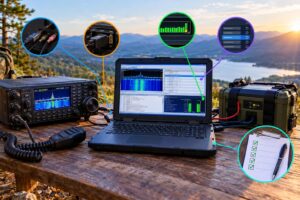
A reliable Winlink VARA HF setup is easier when you understand the signal path. The message begins in Winlink Express, passes through the VARA HF modem, leaves the computer as audio, enters the radio’s data or microphone input, keys the transmitter by CAT, RTS, DTR, VOX, or another PTT method, goes out over HF, and is decoded by an RMS gateway. Received audio follows the same path in reverse.
Draw your own path in one line: computer USB port to radio USB audio, Winlink Express to VARA HF, CAT over COM port, antenna tuner to HF antenna. If you use an external soundcard interface, include that box, its cables, and the selected Windows sound devices. This prevents a common error: adjusting the laptop microphone while VARA is listening to the USB codec, or changing the radio speaker volume while the radio’s USB audio output is controlled by a separate menu.
Step 3: Configure CAT and PTT First
Do not start with audio. First make sure the radio can be controlled and keyed. In the VARA HF Winlink session inside Winlink Express, choose the appropriate radio-control method for your station. The exact menu names and supported radios can change, so use the current Winlink documentation and the software help screens. The important settings are the radio model or control method, serial COM port, baud rate, PTT method, and whether the radio should be placed in USB or data mode.
CAT control should reliably read and set frequency. PTT should key the radio without transmitting a distorted blast of audio. Many modern HF radios use one USB cable for both soundcard audio and CAT control, but they still appear as separate devices in the computer: an audio input/output pair and one or more virtual serial ports.
Quick CAT/PTT checks
- Frequency changes: When Winlink selects a channel, the radio should move to the expected dial frequency or prompt you clearly.
- Mode is correct: Most HF soundcard operation uses USB or a dedicated data mode as directed by the channel and radio manual.
- PTT keys cleanly: The transmitter keys only during the connection attempt and unkeys afterward.
- No hot mic audio: Room noise should not modulate the signal. Use the radio’s data input or correct USB audio device, not the laptop microphone.
If CAT fails, check the COM port, baud rate, driver, and whether another program already has the port open. Only one application can normally control the same serial port at a time.
Step 4: Set Soundcard Audio Levels Without Overdriving
Audio level is the most common reason a technically correct station fails to connect well. VARA HF needs clean audio into the transmitter and adequate received audio into the computer. It does not need speech processing, compression, aggressive equalization, or high ALC action.
On transmit, set the computer playback level and radio data input gain so the radio produces stable RF output without excessive ALC indication. Many operators aim for little or no ALC movement on soundcard digital modes, but follow your radio manual. Disable speech compression and transmit audio effects. Use a reasonable power level for testing; a modest output is enough to prove the path without creating unnecessary interference.
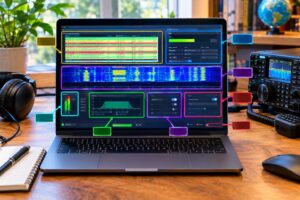
On receive, adjust the radio’s audio output or USB codec level so VARA shows healthy receive audio without clipping. A waterfall or level indicator that is too low may miss decodes; one that is slammed high may distort the tones. Also turn off receive audio enhancements in the operating system if they alter the signal. Noise reduction, automatic gain features, and audio effects can make a human voice sound nicer while making a modem’s job harder.
Step 5: Choose a Usable RMS Gateway
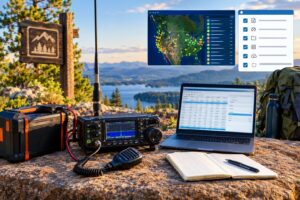
Picking a gateway is not guessing the nearest dot on a map. HF depends on frequency, time of day, distance, solar conditions, antenna direction, and noise at both ends. Winlink Express includes channel-selection tools that help you choose an RMS gateway and frequency appropriate to your location and band privileges. Treat those recommendations as a starting point, then apply operator judgment.
For regional emergency readiness, you often want a gateway that is not too close and not too far for the band and time. On 80 or 40 meters, a few hundred miles may work well at the right time, while 20 meters may be better for longer paths during daylight. These are general propagation patterns, not promises. If your antenna is inefficient on a band, or if local noise is severe, a theoretically good path may fail.
Gateway selection checklist
- Confirm privileges: The channel must be within your license privileges and legal for the mode and bandwidth.
- Check the listed mode: Use VARA HF channels intended for VARA HF, not a different modem type.
- Consider time and band: Try daylight and evening options before concluding the system is broken.
- Avoid weak marginal choices first: For a readiness drill, pick a likely path to prove the station, then test harder paths later.
- Listen before transmitting: Do not transmit over an ongoing QSO or occupied channel.
If your first gateway does not answer, try another appropriate gateway on a different band before tearing apart the station. Propagation failure and configuration failure can look similar until you compare several paths.
Step 6: Send a Short Test Message
Keep the first message intentionally small. The purpose is to confirm function, not to move a long form or attachment. In Winlink Express, create a brief plain-text message addressed to a willing account you can check later. A simple subject such as VARA HF readiness test and a body with your call sign, approximate location, radio, antenna, and time is enough.
Open a VARA HF session, select a suitable RMS gateway, confirm the radio is on the correct channel and mode, listen first, and then start the connection. Watch the sequence. The radio should key, VARA should exchange tones, and Winlink Express should report progress. If the message posts successfully, record the gateway, band, approximate time, antenna, power level, and any observations. That station note is more useful than memory when you repeat the drill next month.
After sending, check for inbound messages through the same or another gateway. A complete readiness check includes both transmit and receive. If possible, repeat the test on at least two bands at different times so you know your options when one band is closed or noisy.
Troubleshooting Failed Connects
Problem: The radio never transmits
Check PTT method, COM port, radio menu settings, and whether the correct session type is open. Confirm that no other logging, rig-control, or digital-mode program is holding the serial port. If using VOX, confirm audio is actually reaching the radio, but consider CAT or hardware PTT for more predictable operation.
Problem: The radio transmits but the gateway does not answer
First, verify the dial frequency, sideband or data mode, and that you selected a VARA HF channel. Listen for existing traffic. Try another gateway and band. If several likely gateways never answer, suspect audio routing, no RF output, antenna mismatch, or severe local noise.
Problem: The gateway answers but the session stalls
This often points to marginal signal-to-noise ratio, overdriven transmit audio, receive clipping, or an unstable path. Reduce transmit audio if ALC is high, lower RF power if the radio is folding back, and choose a stronger gateway. Check that the antenna tuner is matched and that the radio is not overheating or current-limited from a weak battery.
Problem: VARA shows no receive audio
Select the correct Windows recording device in VARA. The laptop microphone is usually wrong. For USB-equipped radios, choose the radio’s USB codec or named audio device. Confirm the radio’s USB audio output level is not muted in the radio menu or operating system.
Problem: Transmit audio is distorted
Disable processor, compression, transmit equalizer boosts, and audio enhancements. Lower computer playback level and radio data gain. Make sure you are not feeding both microphone and USB audio paths at the same time.
Make It a Monthly Readiness Habit
A good readiness drill takes only a few minutes once the station is configured. Once a month, update software from official sources, confirm CAT/PTT, verify audio devices, send a short test message, and log the gateway and band that worked. Before storm season, public-service events, or travel, repeat the drill from the exact computer and power setup you would use off-grid.
If you operate portable, test from battery power with the same USB cables, ferrites, tuner, and antenna you plan to deploy. Many shack problems appear only in the field: RF on USB cables, a laptop that sleeps mid-session, a battery that sags on transmit, or an antenna that tunes but radiates poorly.
Key Takeaways
- A working Winlink VARA HF setup requires current software, correct CAT/PTT, clean audio, a legal channel, and a usable propagation path.
- Prove the station with a short plain-text message before you need it for real traffic.
- Do not solve every failed connect by increasing power. Check audio routing, ALC, frequency, mode, and gateway choice first.
- Record successful gateways, bands, times, and station settings so you can repeat them under pressure.
FAQ
Can I use Winlink VARA HF without internet?
Your station can send and receive messages over HF to an RMS gateway without your own internet connection. The gateway normally provides the connection into the Winlink system. You still need legal amateur privileges and a functioning RF path.
What is the best HF band for Winlink?
There is no single best band. It depends on time of day, distance, solar conditions, antenna efficiency, and noise. For readiness, test more than one band and keep notes on what works from your location.
Should I use maximum power?
No. Use enough power for reliable communication while maintaining clean audio, legal operation, RF exposure compliance, and station safety. Overdriven audio at high power is worse than clean audio at moderate power.
Where should I get software and instructions?
Use official sources: Winlink Quick Start for Amateur Radio and SHARES stations, Winlink Express, VARA Products downloads, and ARRL Simulated Emergency Test information.