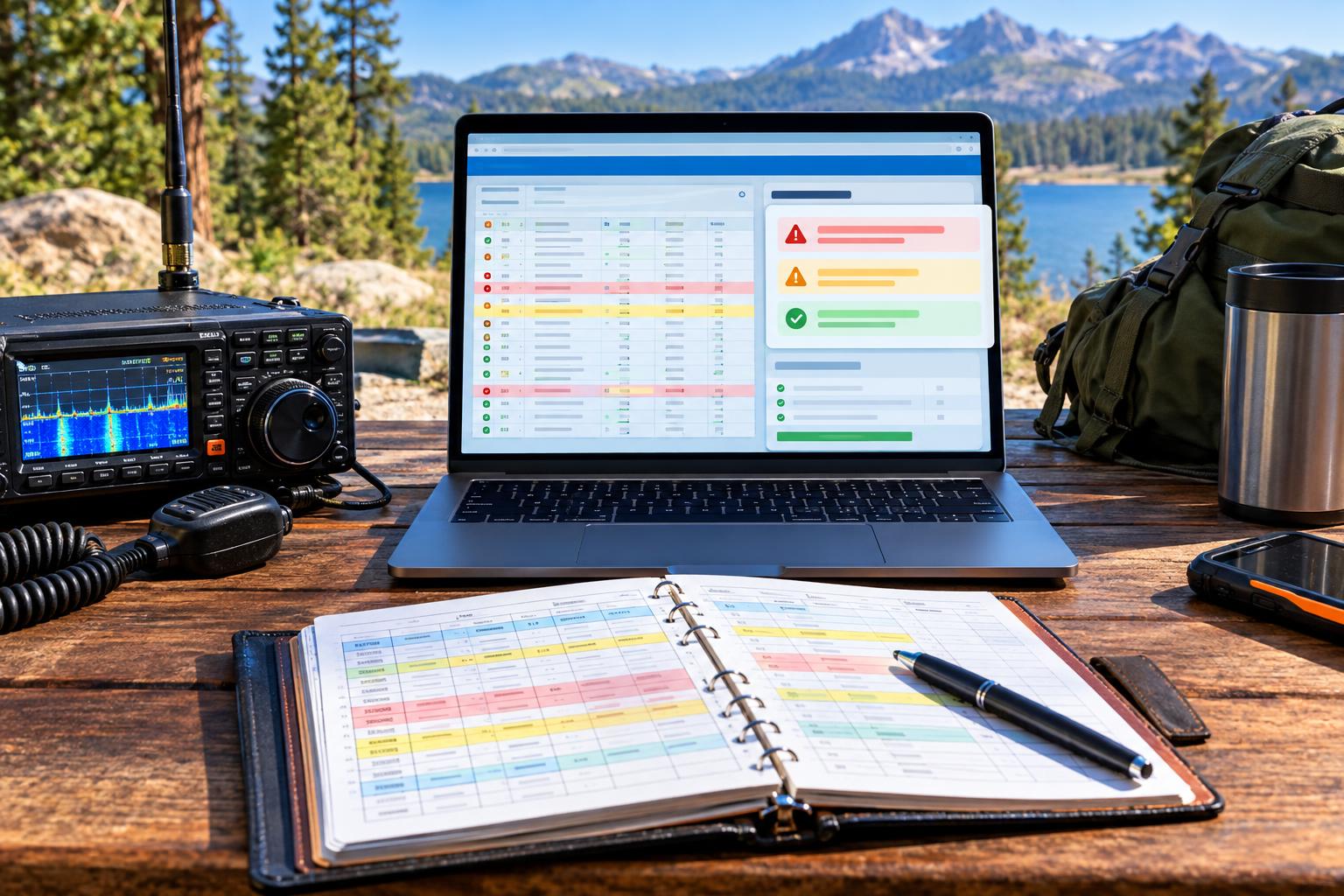
Why POTA ADIF Validation Matters After the Activation
For many Parks on the Air activators, the radio work is the fun part: finding a quiet operating spot, getting an antenna in the air, handling pileups, and making contacts before weather, batteries, or park hours close the window. The less glamorous part is log cleanup. But that last step determines how quickly hunters receive credit and whether you spend the next day answering fix-it messages.
In 2026, the rebuilt POTA.app made that cleanup easier. The official POTA.app changelog notes October 2026 improvements including per-QSO browser validation, duplicate-file checks, and ADIF-mode updates. In plain English, the uploader is getting better at warning you about problems before a bad log becomes someone else’s missing credit.
POTA ADIF validation is not just a software feature. It is a practical preflight habit: verify that the file describes the correct station, park, date, time, band, mode, and park-to-park information before you submit it. When you also operate SOTA from the same summit or park, that habit becomes even more important because one contact may need to satisfy two different award systems with different log requirements.
The Three Upload Problems Activators Can Prevent
1. Bad or Nonstandard Modes
Mode errors are common because logging programs, digital-mode applications, contest loggers, and hand-edited ADIF files do not always express modes the same way. A voice QSO on 20 meters might be straightforward as SSB, but digital contacts can be more complicated because ADIF supports modes and submodes. Some programs export modern digital contacts cleanly; others may create free-text values that look obvious to a human but are not valid ADIF for automated processing.
The October 2026 POTA.app ADIF-mode updates are useful because the validator can compare your file against the current accepted handling in the site rather than relying on your memory. Do not try to outsmart the validator by inventing simplified names such as DIGITAL, DATA, or FT-MODE. Export from a current logger, preserve the logger’s ADIF fields unless you know exactly what you are changing, and let the browser validation point out fields that need attention.
2. Wrong Park References
A wrong park reference can happen in several ways. You might log yesterday’s park because your logger profile did not change. You might type one digit wrong in a park-to-park note. You might activate multiple references and include only one. Or you might copy an old reference from a personal spreadsheet that has not been checked against current POTA data.
The official POTA ADIF reference explains how POTA-related fields are represented in ADIF. In general, activators should pay close attention to the fields that identify the station, the operator when applicable, the activated park reference, and any hunted park reference for park-to-park credit. The important point is not to memorize every tag name; it is to make sure your exported file actually says what happened on the air.
3. Duplicate Files
Duplicate uploads are easy to create after portable operations. You may export once from your laptop, again from your phone, and again after adding a missing QSO. If the file name changes, it may not be obvious which version was already submitted. Duplicate-file checks in the browser help protect you from resubmitting the same activation file and creating avoidable confusion.
A duplicate-file warning does not mean you should ignore real corrections. If you discovered a missing contact, a wrong mode, or a park-to-park field that needs repair, prepare a clean corrected export according to current POTA guidance. The duplicate warning is a signal to slow down and confirm whether you are replacing, correcting, or accidentally repeating the same data.
A Practical POTA ADIF Preflight Workflow
Use this workflow after every activation, especially when you operated from more than one park, used more than one radio, or logged on more than one device.
Step 1: Preserve the Raw Log
Before editing anything, save the original log from your logger or paper notes. If you used a field notebook, photograph the pages before packing away. If you logged on a laptop, keep the native log file as well as the exported ADIF. This gives you a fallback if an edit goes wrong.
Step 2: Confirm the Activation Identity
Check the call sign used on the air, the operator if different, the UTC date, and the activated park reference. POTA logging is based on UTC, not local time. An evening activation in the United States can cross into the next UTC date, which can surprise activators who name files by local calendar date. If you worked from 7:30 p.m. to 9:15 p.m. Central Time, part or all of that operation may fall on the next UTC day depending on daylight saving time and the season.
For POTA, use the current guidance in POTA’s submitting logs documentation. Do not rely solely on an old club handout, a saved checklist from several years ago, or another operator’s file name convention if the official instructions have changed.
Step 3: Scan the Core QSO Fields
Every QSO should have a contacted call sign, date, time, band or frequency information, and mode. Look for obvious field errors: missing times, local-time entries, impossible bands for your actual setup, or copied call signs that contain spaces or punctuation. If your logger records frequency, make sure it matches the band you used. If it records only band, verify that the band is correct.
A simple example: suppose you activated a US park on 20 meters SSB, then switched to 40 meters CW. If your entire ADIF export says 20M SSB, the file may upload but it does not accurately describe the contacts. Browser validation can catch many structural problems, but it cannot always know what antenna switch you moved or what band you actually used.
Step 4: Review Modes Before Upload
Sort or filter the log by mode. Confirm that voice, CW, and digital contacts appear as real ADIF-compatible mode values rather than notes. Be especially careful when importing QSOs from WSJT-X, JS8Call, fldigi, N1MM Logger+, HamRS, or another logger into a second application. Import-export chains are where mode fields can be altered unintentionally.
If POTA.app flags a mode, do not randomly rename it. First update your logging software if needed, then re-export. If you must edit the ADIF directly, make a copy and change only the specific field you understand. ADIF tags include field lengths, so careless manual editing can corrupt the file if the length indicator no longer matches the value.
Step 5: Validate Park-to-Park Contacts
Park-to-park contacts are valuable to both sides, but they require accurate park information. If you contacted another activator, record the other activator’s park reference in the correct POTA field rather than burying it only in a comment. The official POTA park-to-park documentation is the right reference for current handling.
During a pileup, it is easy to mishear a reference. If the other operator says K-1234 and your log says K-1324, the call sign may be correct but the park-to-park credit can fail or require cleanup. Good field practice is to repeat the park reference back when conditions allow, especially on noisy HF paths.
Step 6: Use Browser Validation Before Final Submission
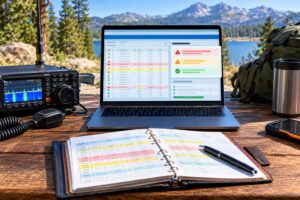
When you upload through the current POTA.app interface, pay attention to the per-QSO validation feedback. Per-QSO checking is especially helpful because it points to the individual contact that needs review rather than leaving you to search the whole file. Treat warnings as a preflight checklist, not as a nuisance.
If the validator reports a duplicate file, stop and compare the file against your submitted records. Confirm the park, date, QSO count, and whether the file contains corrections. If you are unsure, avoid repeated uploads and consult the current POTA help path rather than creating multiple conflicting attempts.
Joint POTA and SOTA Activations
Many portable operators enjoy combining POTA and Summits on the Air when a summit, trailhead, or nearby public land makes it practical. The logging principle is simple: keep one accurate source record of what happened, then export or enter data according to each program’s requirements.
Do not assume a POTA-ready ADIF file is automatically a SOTA-ready submission, or the other way around. POTA focuses on park references and its own ADIF handling. SOTA has its own summit references, chaser and activator processes, and database expectations. For joint activations, record both references in the field, but submit each program’s log in the format and workflow that program currently requires.
Field Habits That Make Validation Easier
- Set your logger profile before calling CQ. Confirm call sign, park reference, UTC clock, and default mode.
- Log UTC, not local time. Sync the device clock before leaving home if you will be offline.
- Announce and confirm park-to-park references. Repeat the other reference when conditions permit.
- Keep notes for band and mode changes. A short paper note such as 1812Z changed to 40 CW can solve later confusion.
- Export once, review once, then upload. Avoid multiple nearly identical ADIF files scattered across devices.
- Do not hand-edit the only copy. Keep an untouched original and edit a duplicate if correction is necessary.
Safety and Regulatory Notes for Portable Operators
Clean logs matter, but safety and legal operation come first. Operate only within your license privileges, follow current FCC rules in the United States, and respect band plans and local restrictions. Portable antennas, masts, counterpoise wires, and batteries introduce real hazards. Keep antennas away from power lines, manage trip hazards around public trails, protect lithium batteries from damage and overheating, and evaluate RF exposure for your operating setup. Park rules, weather, terrain, and shared public access may limit where and how you can operate.
FAQ
Does browser validation guarantee my POTA log is perfect?
No. Validation can catch many format, mode, park, and duplicate-file issues, but it cannot know everything that happened in the field. You are still responsible for accurate call signs, times, bands, modes, and references.
Should I edit ADIF files by hand?
Only when necessary and only on a copy. ADIF is readable, but its tagged field lengths make careless edits risky. Whenever possible, fix the data in your logging program and export a fresh file.
What if my digital mode is flagged?
Check whether your logger is current and whether the export uses accepted ADIF mode or submode handling. Avoid inventing a replacement value. Re-export from updated software when practical, then validate again.
How should I handle a corrected upload?
Follow the current POTA submission guidance. Keep records of the original file, the corrected file, and what changed. If the site warns that the file is a duplicate, verify whether you are truly submitting a corrected version or accidentally repeating the same upload.
Key Takeaways
- POTA ADIF validation is a final preflight step that helps hunters receive credit faster and reduces avoidable cleanup.
- Mode names, park references, UTC dates, and park-to-park fields deserve special attention.
- The 2026 POTA.app browser improvements make per-QSO problems easier to find before submission.
- Duplicate-file warnings are useful prompts to compare versions before uploading again.
- For joint POTA and SOTA activations, maintain one accurate source log but submit according to each program’s current rules.